> For the complete documentation index, see [llms.txt](https://icij.gitbook.io/datashare/llms.txt). Markdown versions of documentation pages are available by appending `.md` to page URLs; this page is available as [Markdown](https://icij.gitbook.io/datashare/local-mode/install-datashare-on-linux/add-documents-to-datashare-on-linux.md).
# Add documents to Datashare
Datashare provides a folder to collect documents on your computer to index in Datashare.
{% stepper %}
{% step %}
**Add documents to your 'Datashare' folder**
You can find a folder called '**Datashare'** in your **home directory**.
Move the documents you want to add to Datashare into this folder.
{% endstep %}
{% step %}
**Launch Datashare**
Launch Datashare and see the interface opening in your default browser.
{% endstep %}
{% step %}
**In the menu, in 'Tasks', open 'Documents'**
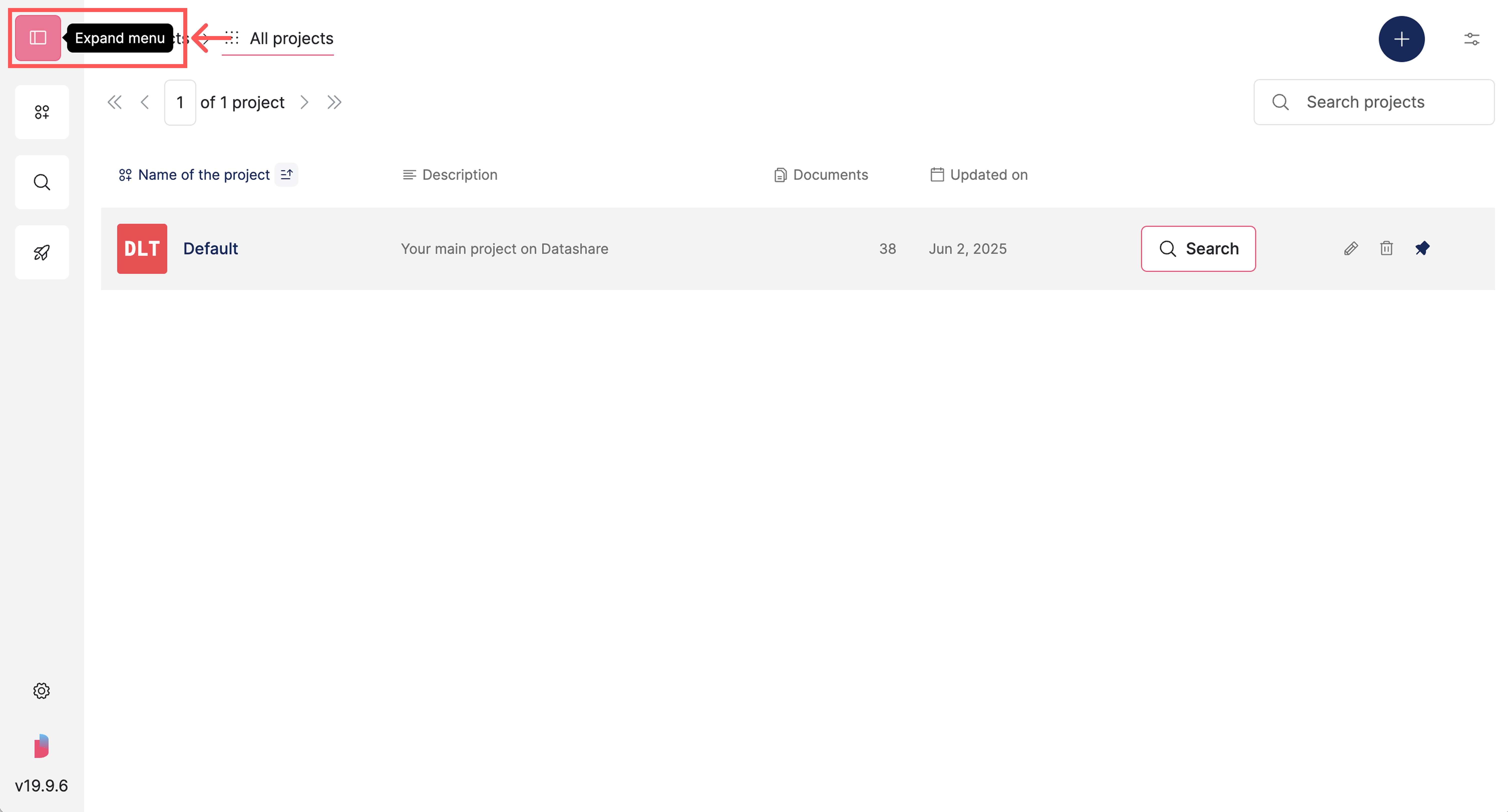
Expand the **menu** on the left:
Expand the menu
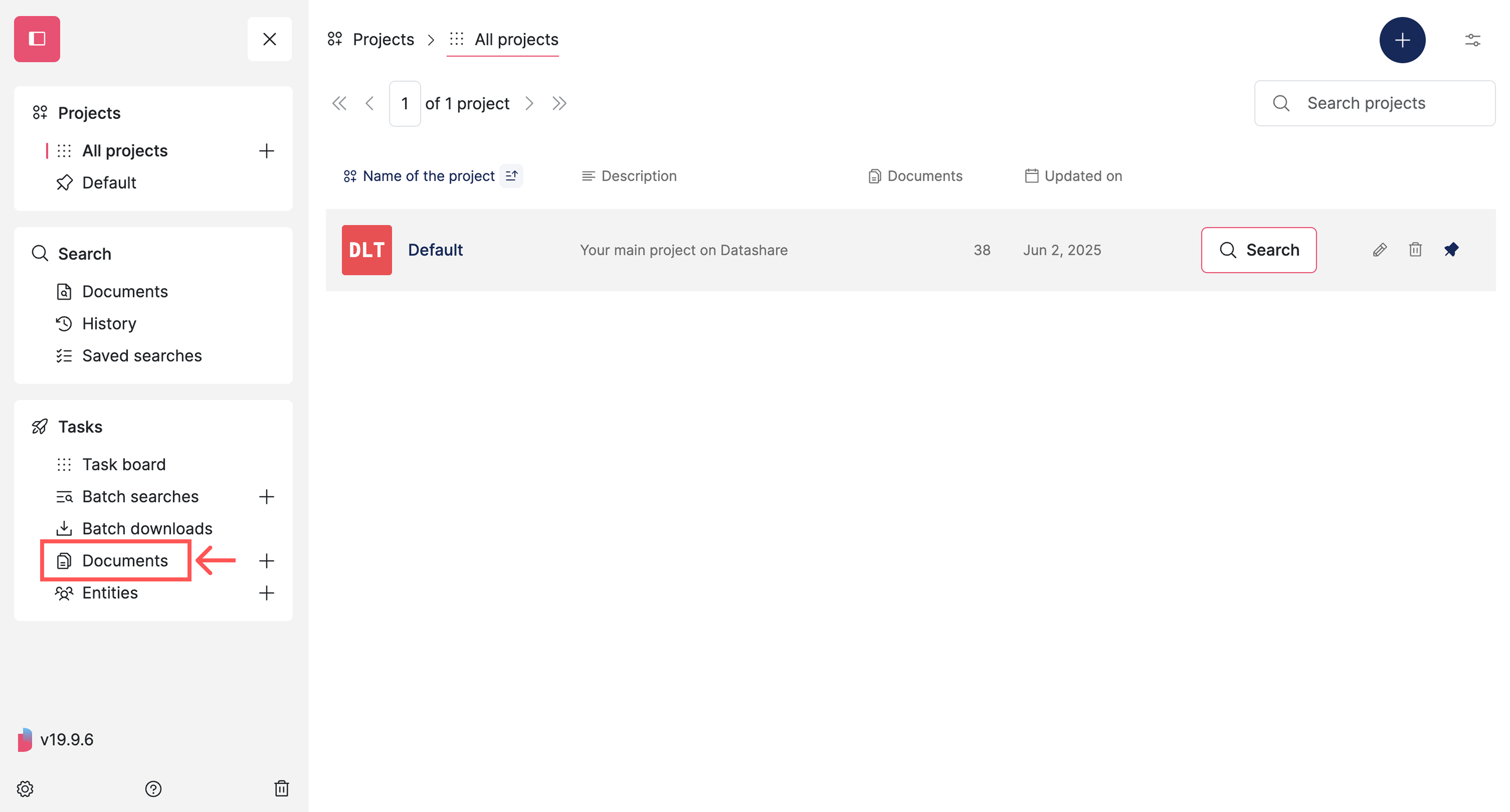
In '**Tasks**', open '**Documents**':
Open the "Documents" page
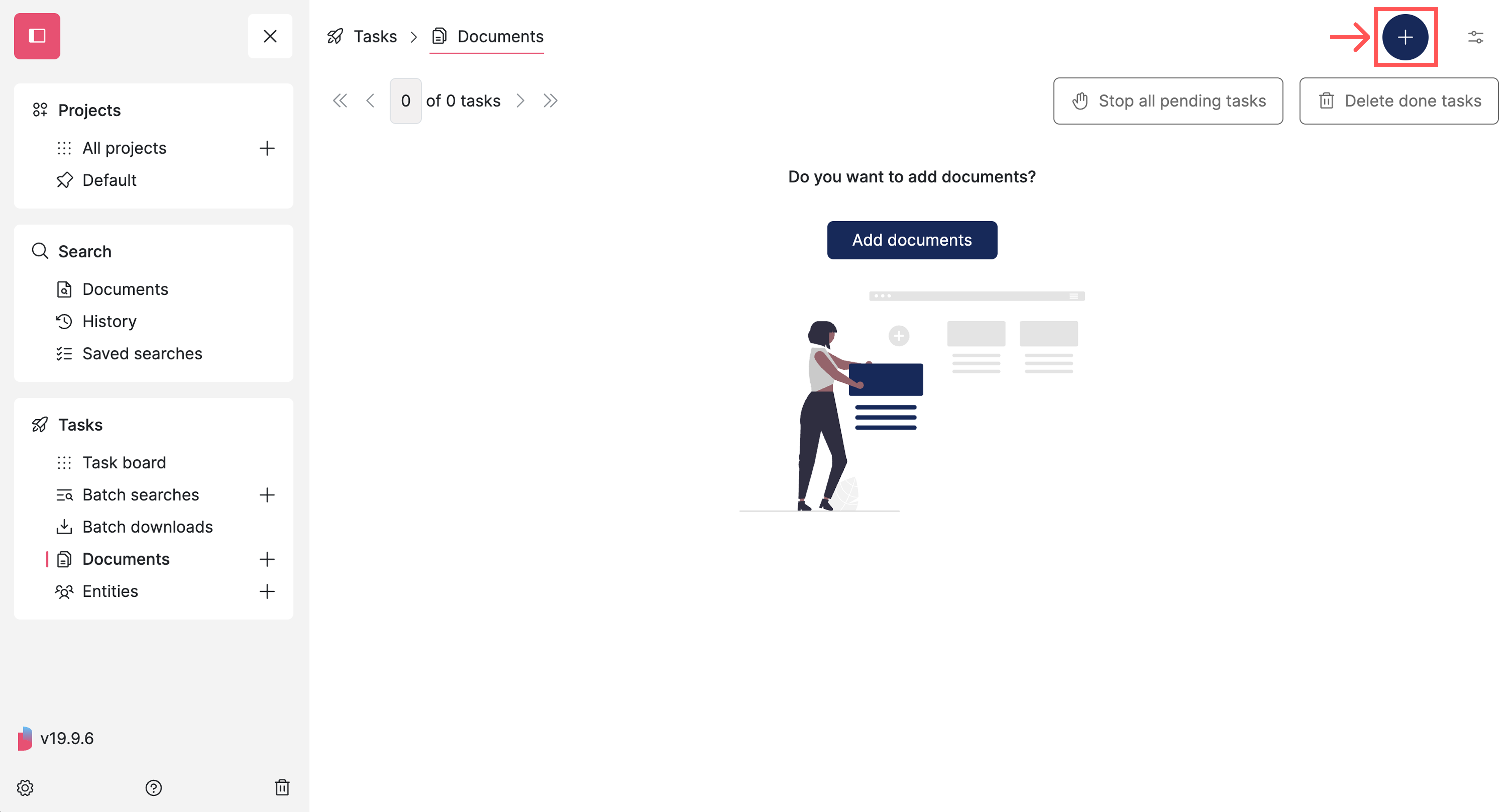
On the top right, click the '**Plus'** button:
Click the "Plus" button
{% endstep %}
{% step %}
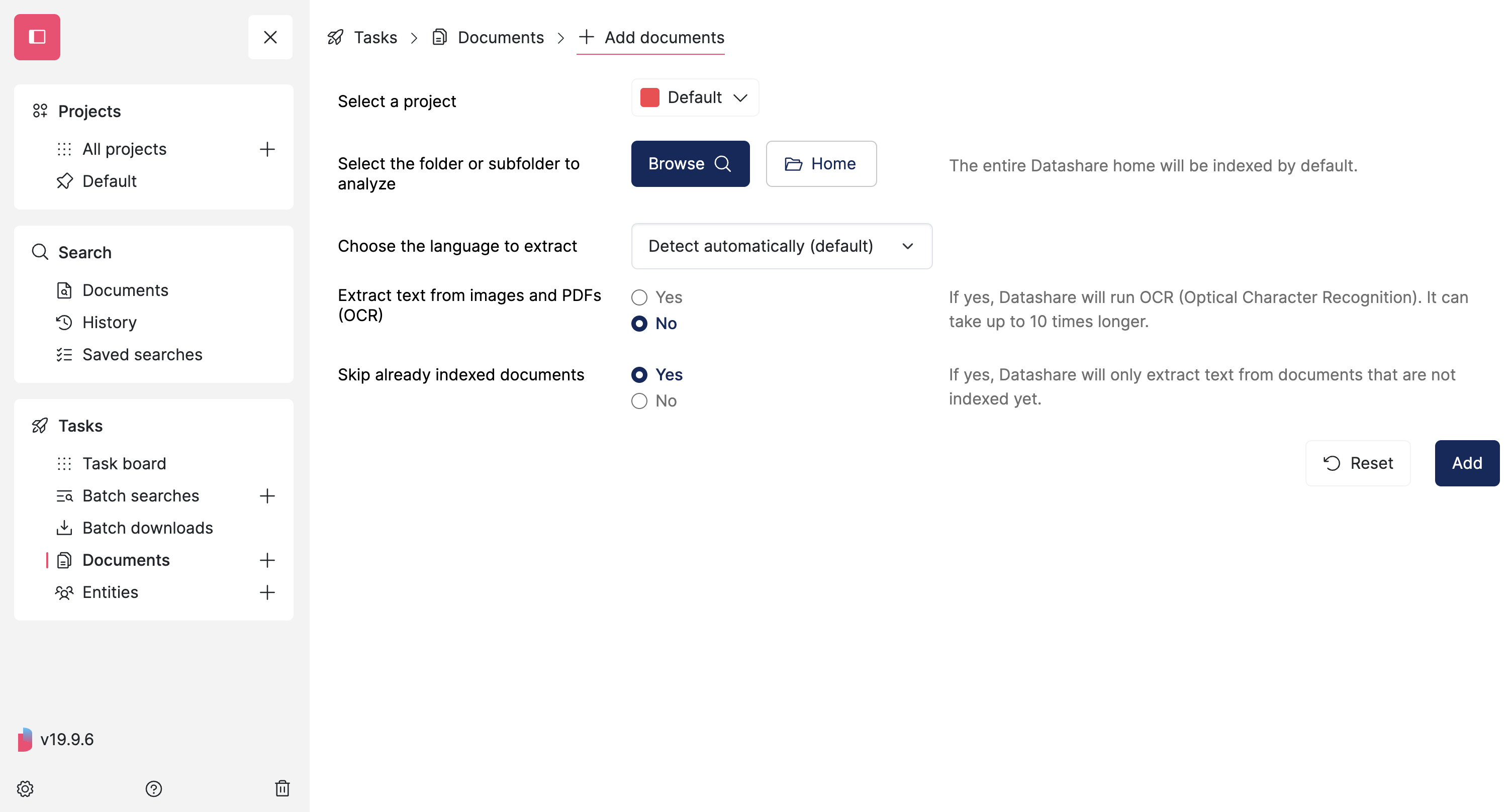
**Choose your options**
* Select the **project** in Datashare where you want to add your documents. The Default project, which is automatically created, is selected by default.
* Select the **folder or sub-folder** on your computer in your 'Datashare' directory containing the documents you want to add. The entire 'Datashare' directory will be added by default.
* Choose the **language** of your documents if you don't want Datashare to guess it automatically.\
Note: If you choose to also extract text from images (at the next option), you might need to install the appropriate language package on your system. Datashare will tell you if the language package is missing. Refer to the documentation to know [how to install language packages](/datashare/local-mode/add-more-languages.md).
* Extract text from **images/PDFs with Optical Character Recognition (OCR)**. Be aware the indexing can take up to 10 times longer.
* Skip **already indexed** documents if you'd like.
* Click '**Add**'
Form for adding documents
{% endstep %}
{% step %}
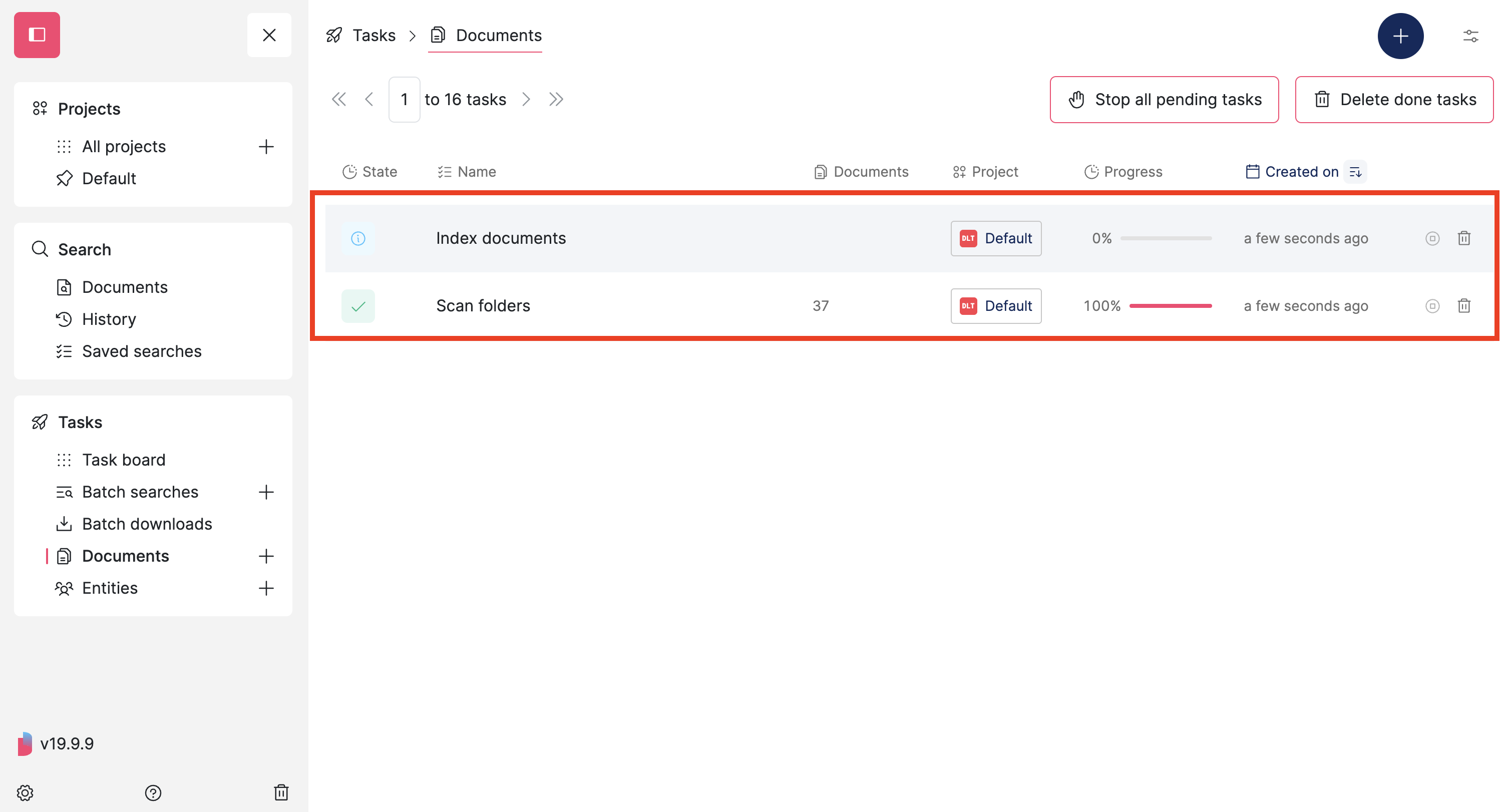
**Watch the progress of your document addition**
Two extraction tasks are now running:
* The first is the **scanning** of your Datashare folder - it sees if there are documents to analyze. It is called 'ScanTask'.
* The second is the **indexing** of these files. It is called 'IndexTask'.
Note: It is not possible to '[Find entities](/datashare/local-mode/find-entities.md)' while these two tasks are still running. You won't have the entities (names of people, organizations, locations and e-mail addresses) yet. To get these, once your document addition is finished, please follow the steps to '[Find entities'](/datashare/local-mode/find-entities.md).
But you can start searching in your documents without having to wait for all tasks to be done.
{% endstep %}
{% endstepper %}
You can now [search documents in Datashare](/datashare/usage/search-documents.md).
---
# Agent Instructions
This documentation is published with GitBook. GitBook is the documentation platform designed so that both humans and AI agents can read, navigate, and reason over technical content effectively. Learn more at gitbook.com.
## Querying This Documentation
If you need additional information that is not directly available in this page, you can query the documentation by asking a question.
Perform an HTTP GET request on the following URL with the `ask` and `goal` query parameters:
```
GET https://icij.gitbook.io/datashare/local-mode/install-datashare-on-linux/add-documents-to-datashare-on-linux.md?ask=&goal=
```
`ask` is the immediate question: it should be specific, self-contained, and written in natural language.
`goal` is what the user is ultimately trying to achieve, the reason they need the answer. Sharing it helps GitBook give you a better, more relevant answer. A goal is most helpful when it describes the outcome the user wants rather than restating the question. For example, with `ask=how do I create an API token`, a goal like `automate deployments from our CI pipeline` lets GitBook tailor the answer to that use case.
The response will contain a direct answer to the question and relevant excerpts and sources from the documentation.
Use this mechanism when the answer is not explicitly present in the current page, you need clarification or additional context, or you want to retrieve related documentation sections.